
What is a Virtual Agenda Item?
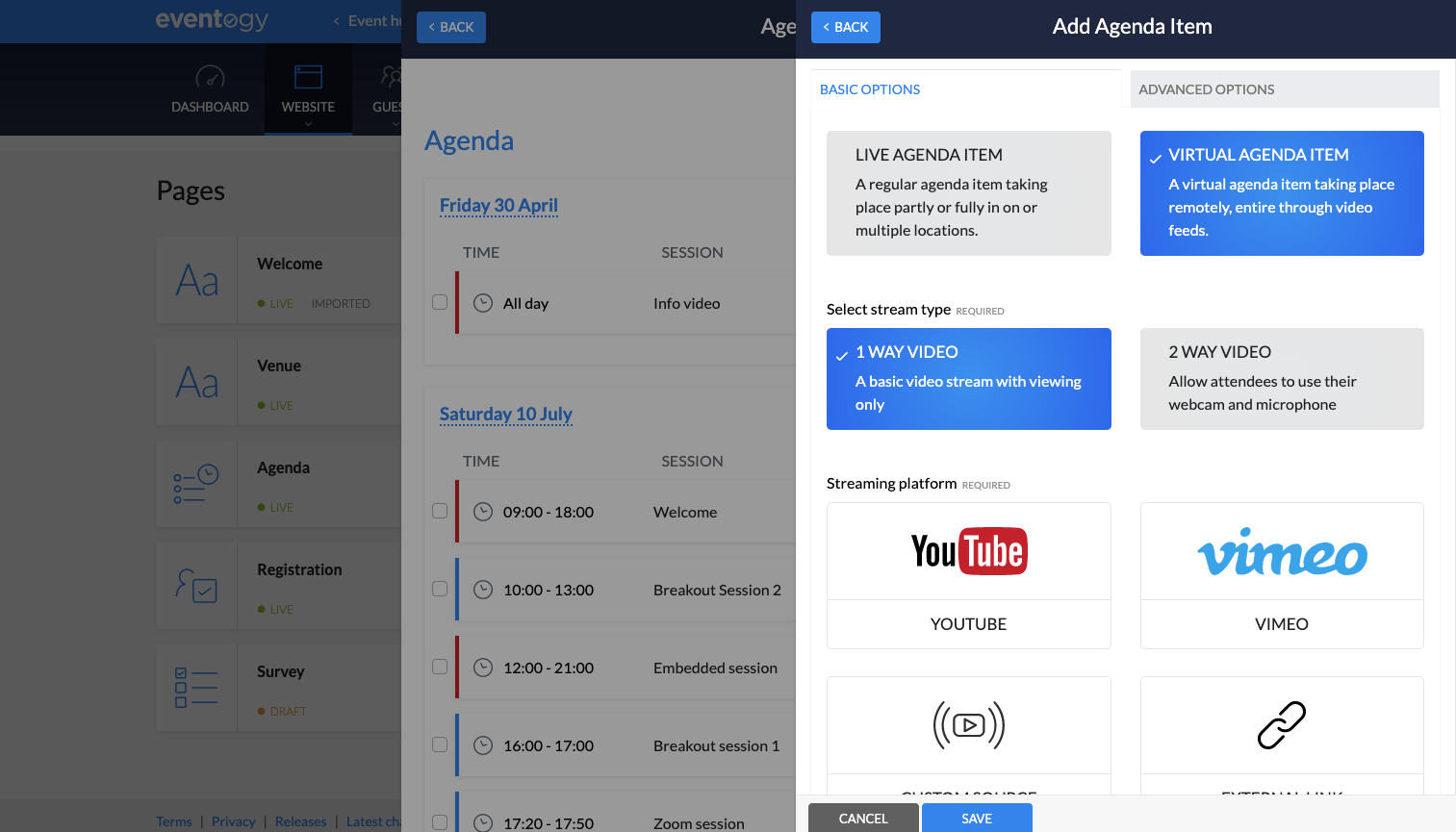
A Virtual Agenda Item represents the virtual event shows up on the agenda. You need to create one for each virtual event. It supports two types of stream types and 5 types of streaming platforms.
How to create a Virtual Agenda Item?
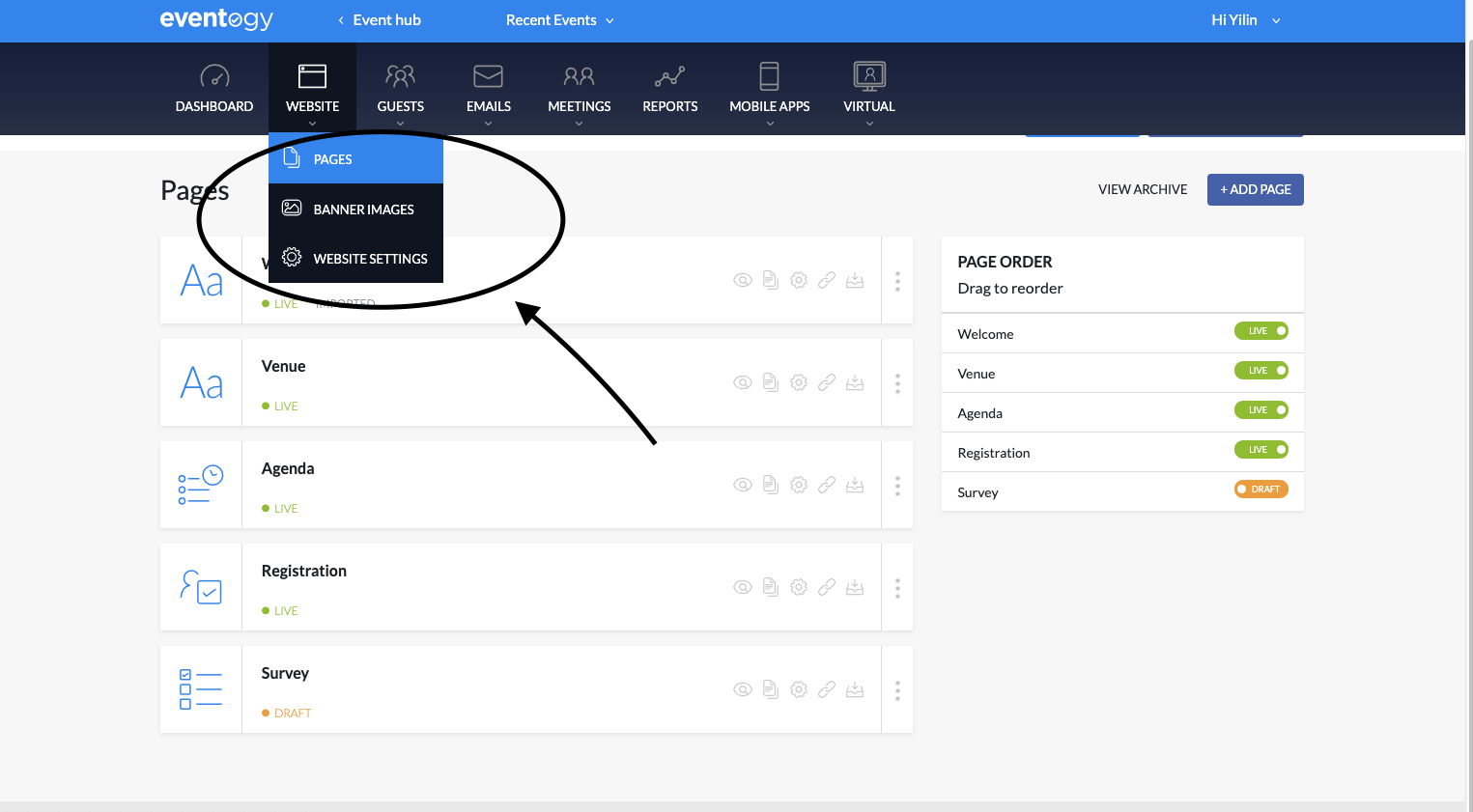
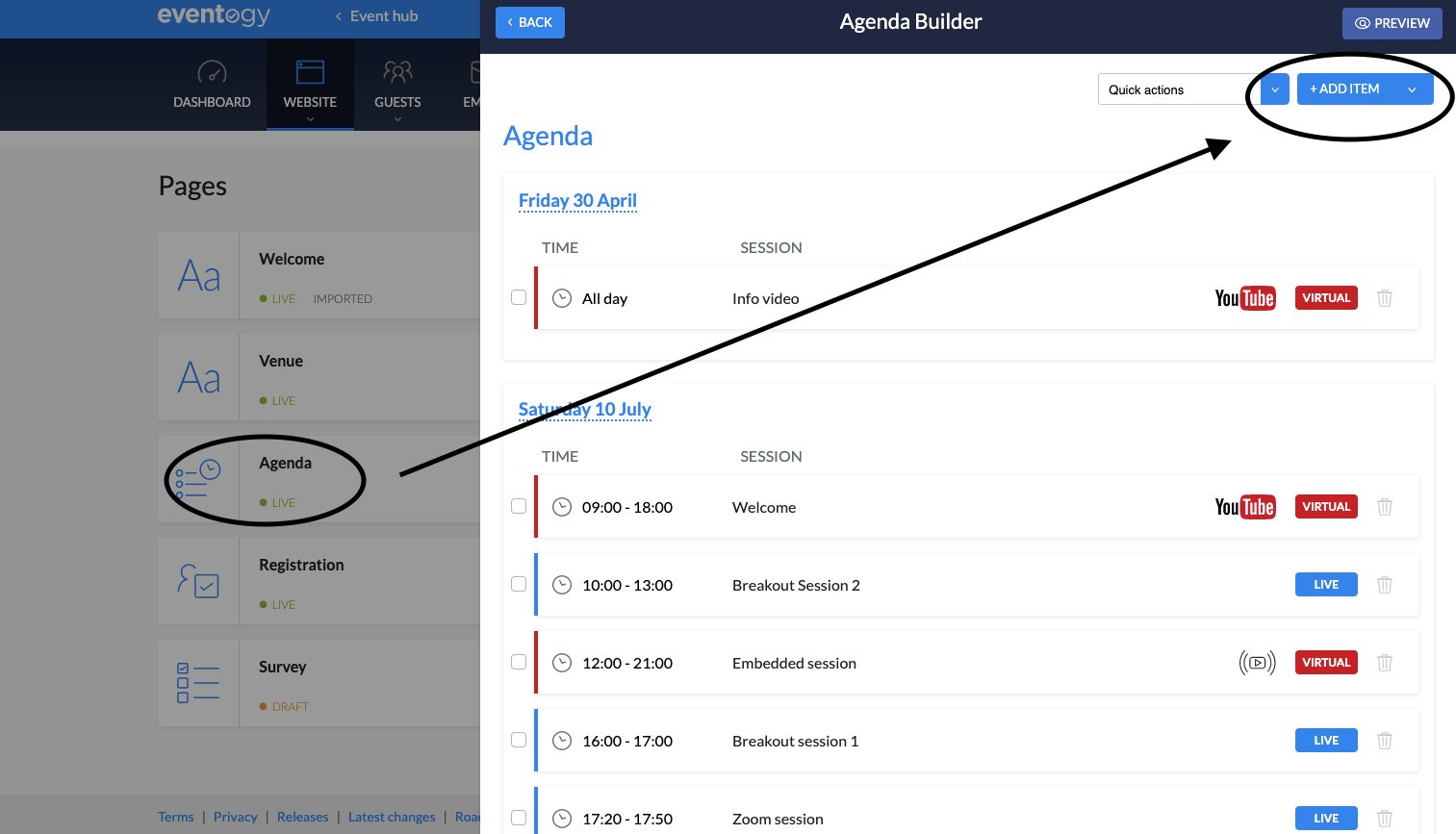
To create a Virtual Agenda Item, you can go to Website - Page, and start by editing the Agenda page. Click on the 'Add Item' button, you will have the option to create item as a Virtual Agenda Item for your virtual event.
Two types of Virtual Agenda Items
One way video
The attendees will have the audio/video feed sent to them, but they will not be able to send any a/v themselves. They will however have access to different engagement tools.
The supported one way video platforms are:
-
Youtube
-
Vimeo
-
Zoom webinars (a Zoom webinar Virtual account needs to have been set-up on the system)
-
Custom source (any custom embed link, video HTML tag, etc)
-
External link (a link that will take away the user from the Virtual Module, but allows for more flexibility, for example the direct link to a Google Hangouts meeting)
Two way video
Unlike a way way video item, attendees can send their audio/video (if allowed).
The supported integrations are:
-
WebEx
-
Zoom
Virtual Options
Depending on the type and platform, each Virtual Agenda item can have different options:
ID/URL
Youtube, Vimeo, External Link, Zoom Webinars
This will define the source of the stream, either the ID or link of the video
Embed code
Custom source
The custom embed code. This will be an HTML snippet that will hold the source of the video
Webinar password
Zoom Webinars
The password of the Zoom Webinar, allowing guests to automatically connect
Virtual account
Zoom Webinars, WebEx, Zoom
The Virtual Account added on the platform, corresponding to the Zoom/WebEx account this meeting will be generated on. For Zoom Webinars, this is the account that was used to previously create the Webinar, and now used to generate guests accounts for attendees.
Presenter types
WebEx
Guests type that will see the Share screen option, alongside the host
Host
Youtube, Vimeo, Custom source, Zoom Webinars, WebEx, Zoom
A single person that will have additional control during the session, and that will start the Two Way sessions
Participants
Youtube, Vimeo, Custom source, WebEx
A list of all connected participants
Chat
Youtube, Vimeo, Custom source, WebEx
Group chat with the session’s participants
Replay
Youtube, Vimeo, External Link, Custom source, Zoom Webinars
Show a replay button once the session has finished
Join before start
Youtube, Vimeo, External Link, Custom source, Zoom Webinars, WebEx, Zoom
Allow attendees to join the session ahead of the assigned agenda time
Attendee video
WebEx
Allow attendees to send their video feed
Attendee audio
WebEx
Allow attendees to send their audio feed
Waiting room
WebEx
Place attendees in a waiting room, that the host need to allow in before being able to join the session
Dial-in Options
WebEx
Show the pre-generated dial-in options to allow the attendees to join via phone
Record meeting
WebEx
Automatically start the recording of the meeting when the meeting starts
Launch in external application
WebEx, Zoom
The join button will take the attendee to the external WebEx/Zoom application, away from the platform
Advanced Virtual Options
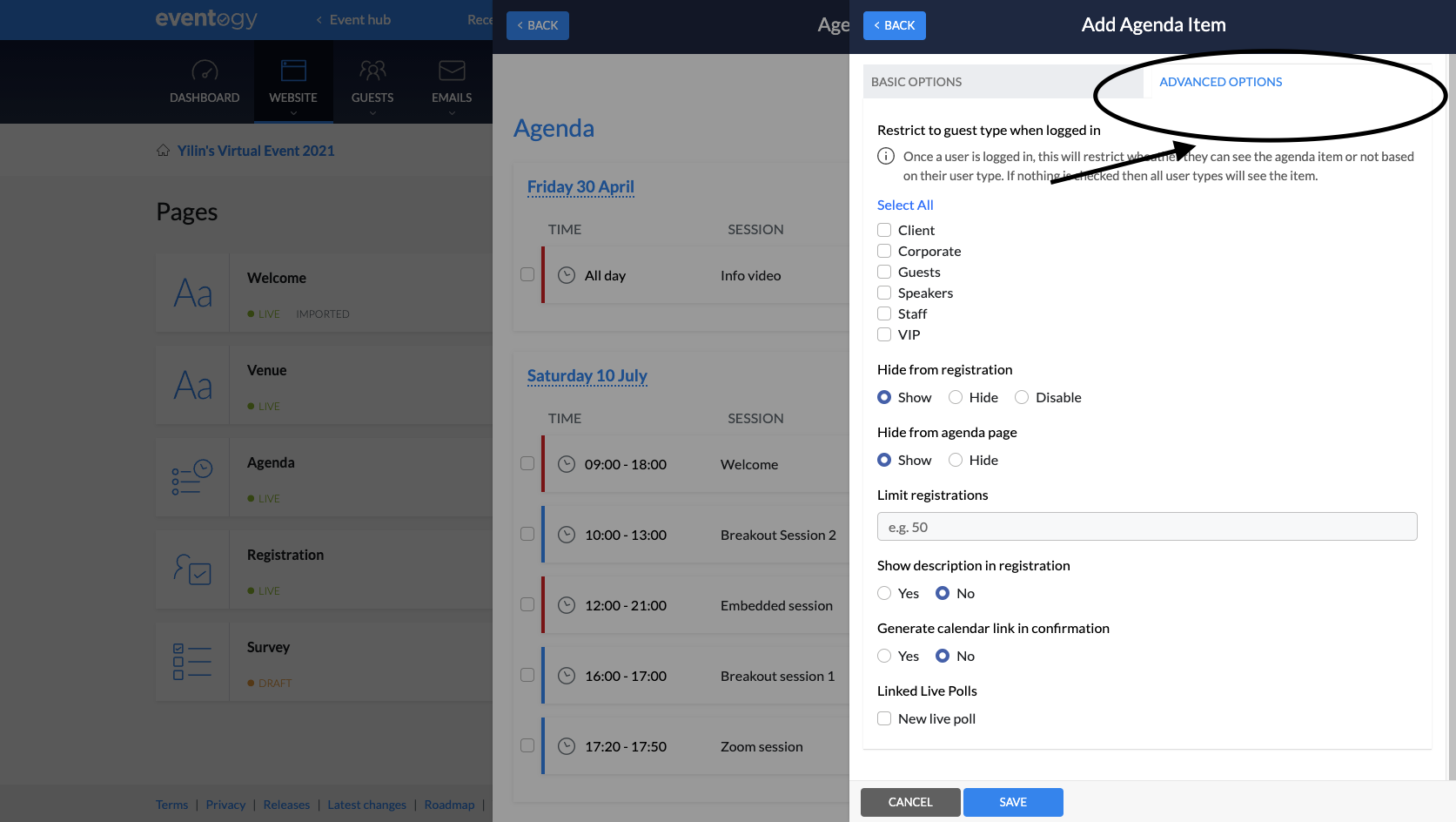
In the Advanced Options tab of the Agenda Item, additional data can be linked to this agenda item (these items need to be created in the Virtual Settings section first):
-
Linked Live Polls
-
Linked Questions & Answers
-
Linked Documents
Comments
0 comments
Article is closed for comments.